
Providers can now send custom SMS text messages to players directly from the Event Desk for SMS-enabled events. This feature helps providers communicate important updates quickly during tournaments and events.
When SMS messaging is enabled for an event:
- Providers can send custom text messages to players from the Event Desk.
- Players can choose whether they want to receive SMS notifications.
- Players who opt in may also receive match result updates via SMS.
- A per-player SMS fee is charged to the provider.
Note: SMS messaging currently supports US phone numbers only.
How to Enable SMS Messaging for an Event
Providers can enable SMS messaging during event creation or while editing an event.
Steps to Enable SMS
- Navigate to Edit Event.
- Go to Step 3 of the setup flow.
- Turn on Enable SMS Texting.
- Review and accept the SMS provider fee agreement.
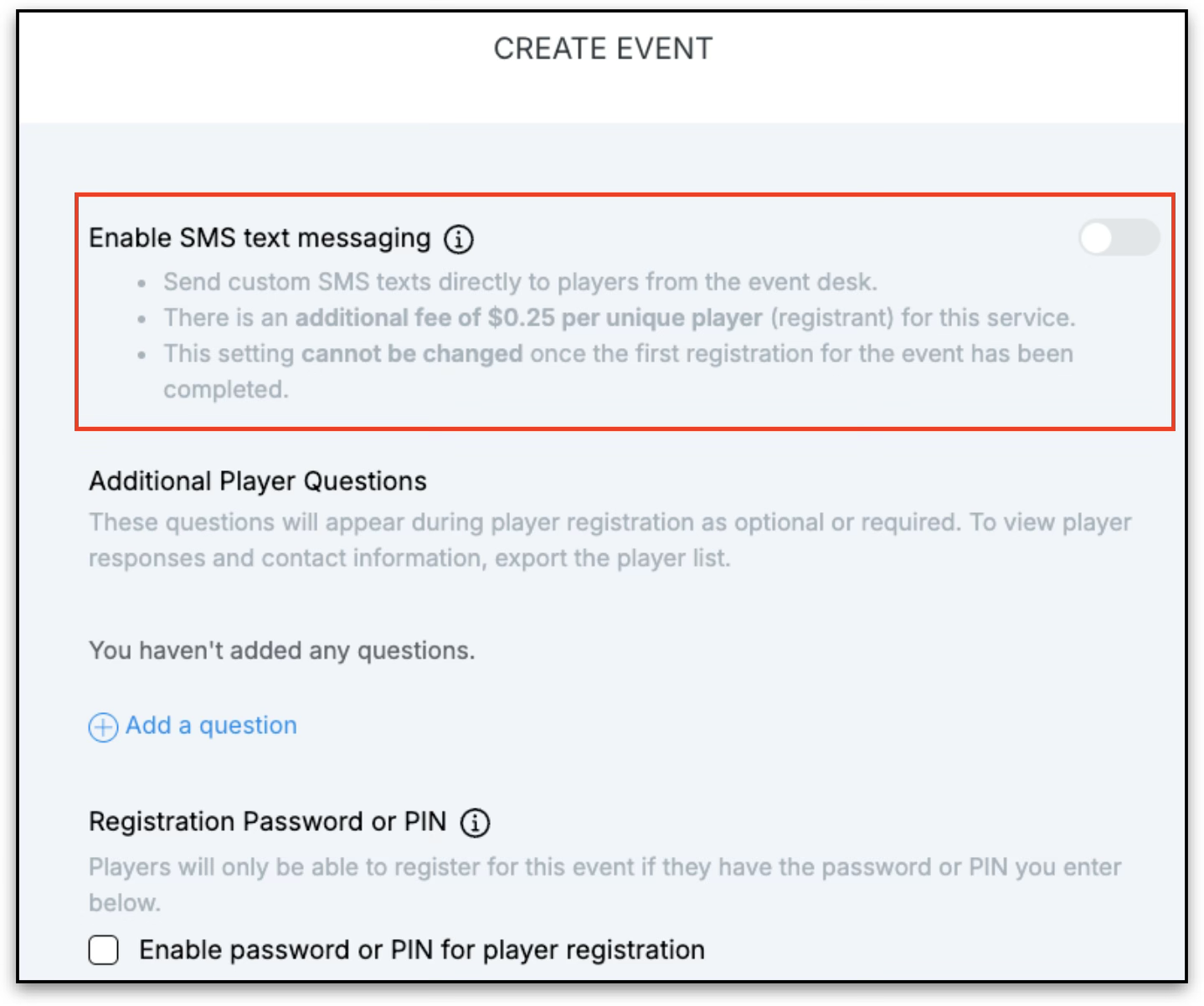
Once enabled, providers will see the following information:
- Providers can send custom SMS texts directly from the Event Desk.
- There is an additional fee charged per unique player registration.
- SMS messaging only supports US phone numbers.
- Players can opt out of SMS notifications during registration or later in their account settings.
- Players who opt in may also receive match result notifications via SMS.
Note: SMS settings cannot be changed after the first registration for the event is completed.
SMS Fees for Providers
Providers are charged an SMS fee for each unique player registered in an SMS-enabled event.
Fee Details
- Fee Amount: $0.25 per unique player
- Charged To: Provider
- Billing Method: Deducted from provider fees during registration
Additional Fee Rules
- A player is only charged once per event, even if they register for multiple divisions later.
- If a player fully withdraws and receives a full refund, the SMS fee is refunded to the provider.
- If a provider issues a partial refund while the player remains in the event, the SMS fee is not refunded.
Sending SMS Messages from the Event Desk
Providers can send messages to selected players directly from the Event Desk while the event is in progress.
How to Send a Message
- Open the Event Desk.
- Select players from:
- The All-Player List
- Draw Player Banks
- Click Contact.
- Enter your message in the communication panel.
- Choose whether to send:
- SMS
- Or both
- Send the message.
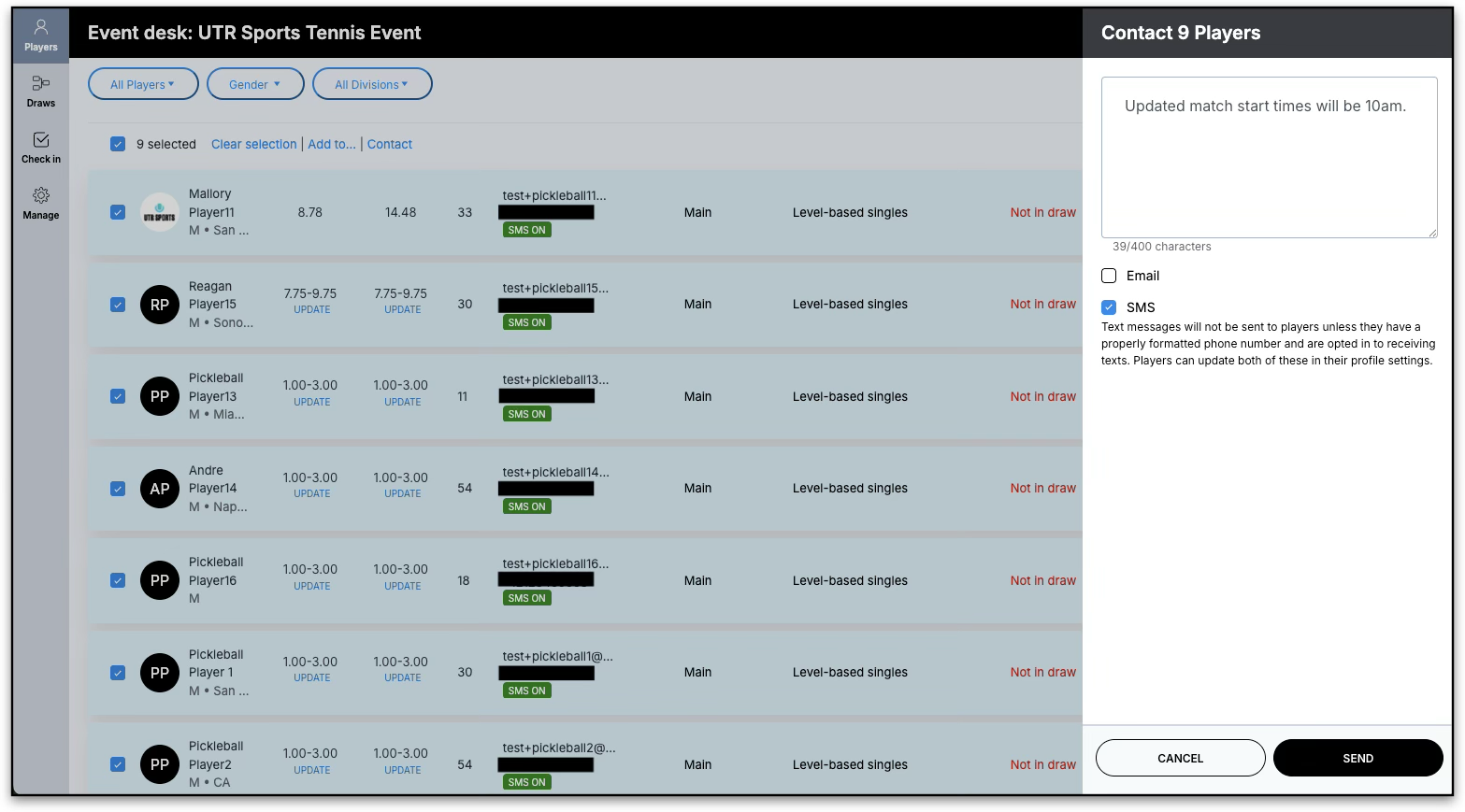
SMS Status Indicators
The All-Player List will display each player's SMS status:
- SMS On: Player has opted in
- SMS Off: Player has opted out
Providers can only send SMS messages to players who have opted in.
Managing SMS Notifications During an Event
For SMS-enabled events, providers can manage SMS messaging directly from the Event Desk.
How to Turn SMS Messaging On or Off
- Open the Event Desk.
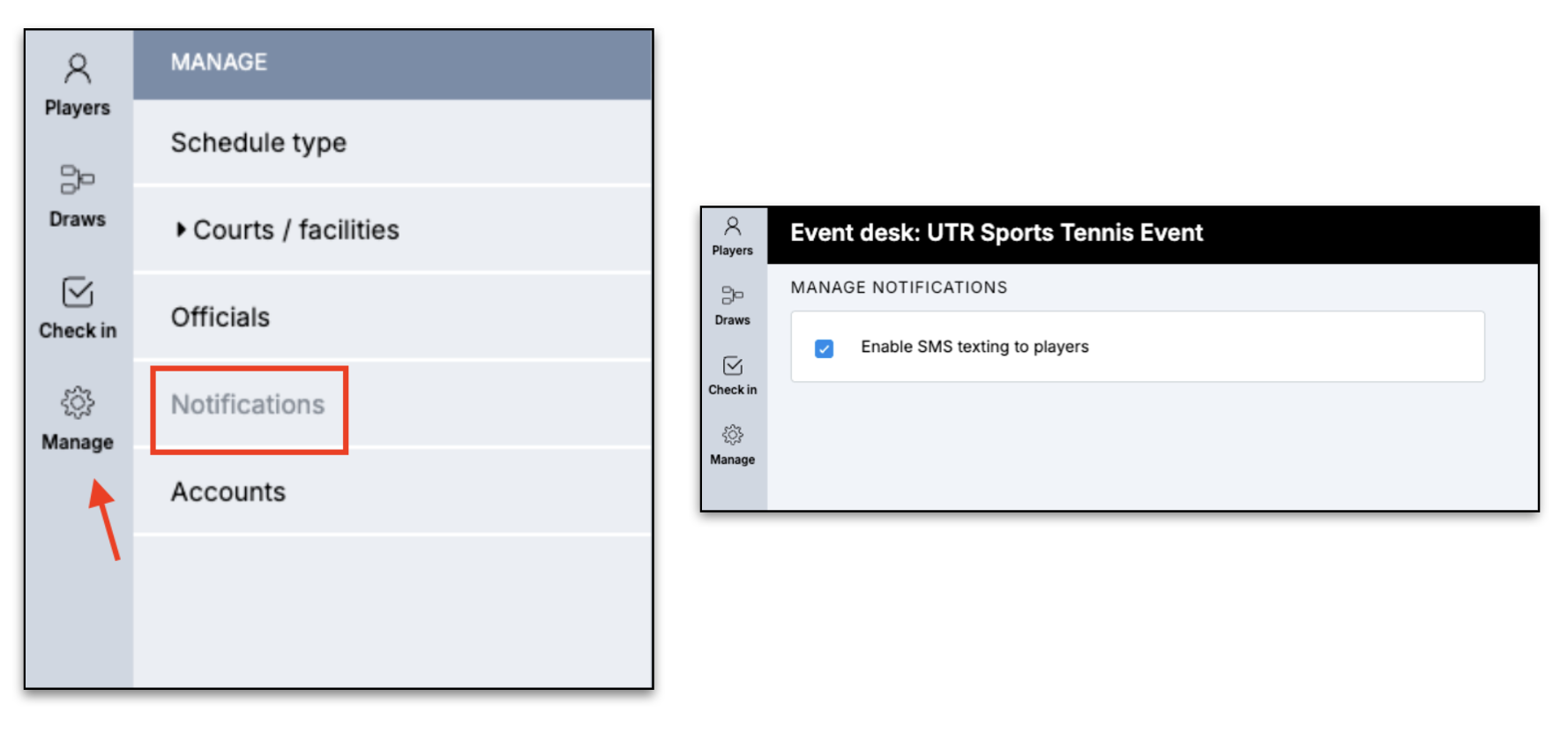
- Select the Manage icon.
- Go to Notification Settings.
- Toggle SMS messaging ON or OFF.
When SMS messaging is turned OFF:
- No additional SMS messages will be sent to players for that event until it is turned back ON.
Frequently Asked Questions
Q: Can players opt out of SMS notifications?
A: Yes. Players can opt out during registration or later in their Player Settings.
Q: Can providers disable SMS after registrations begin?
A: No. Once the first registration for the event is completed, the SMS setting can no longer be changed.
Q: Are international phone numbers supported?
A: No. SMS messaging currently supports US phone numbers only.
Q: Will players receive match result notifications through SMS?
A: Yes. Players who opt in to SMS messaging may also receive match result notifications via text.
Q: Can providers send both email and SMS messages?
A: Yes. Providers can choose to send messages via email, SMS, or both from the communication panel.
Q: What happens if a player withdraws from the event?
A: If the player fully withdraws and receives a full refund, the SMS fee is refunded back to the provider.